
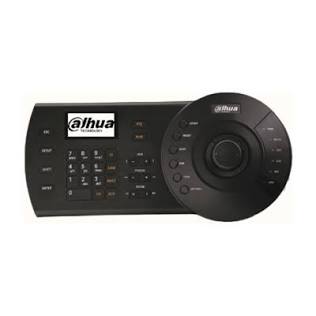
Dahua Joystick Keyboards (also known as PTZ Network Controllers) are designed to provide precise, real-time control over Pan-Tilt-Zoom (PTZ) cameras, speed domes, NVRs, and video wall controllers in security monitoring centers.
1. Popular Dahua Joystick Models
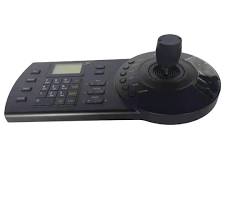
| Model | Connectivity | Key Features | Best Use Case |
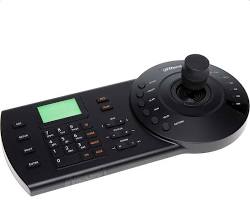
| NKB1000 | RS485 / RS232 / USB / Network (IP) | 3D Joystick, LCD Screen, supports Dahua protocol, Pelco-D/P | Standard monitoring rooms & DVR/NVR control |
| NKB5000 | IP Network (RJ45) / Wi-Fi | 4D Joystick, 10.1″ Touchscreen, 4K video decoding, HDMI output | Professional control rooms & video walls |
| NKB2000 | IP Network (RJ45) / RS485 | 3D Joystick, direct connection to IP cameras and NVRs | Small to medium IP camera deployments |
2. Core Functions & Controls
- 3D/4D Vector Joystick: Controls Pan (left/right), Tilt (up/down), and Zoom (twist handle clockwise/counter-clockwise). 4D models include fine focus control.
- Presets & Patrols: Quickly trigger pre-configured camera positions (Presets) or automated surveillance tours (Patrol/Pattern).
- Multi-Device Switching: Switch between live camera streams or select specific channels on NVRs/DVRs via numerical hotkeys.
3. How to Connect a Dahua Joystick Keyboard
Method A: Network Connection (IP / LAN)
- Connect the joystick controller to the same local switch as your Dahua NVR or IP PTZ cameras using an Ethernet cable.
- Assign a static IP address to the controller matching your local network subnet (e.g.,
192.168.1.200). - Access the controller menu, go to Device Management, and add the camera/NVR IP address along with login credentials.
Method B: Serial Connection (RS485)
- Connect the RS485 A (+) and B (-) terminals on the joystick to the corresponding RS485 ports on the PTZ camera or recorder.
- Match the Baud Rate (typically
9600) and Protocol (Dahua or Pelco-D) across both devices. - Assign a unique Address ID to each PTZ camera in the setup menu.
Troubleshooting Common Issues
- Joystick Not Controlling Camera: Verify that the PTZ address and protocol match between the keyboard and camera. For IP setups, check network ping connectivity.
- Zoom Cable / Twist Delay: Recalibrate the joystick using the system menu settings (System Maintenance > Joystick Calibration).
Need Technical Support or Installation Help?
Configuring PTZ address protocols, serial baud rates, or IP video matrix routing can be complex. If you need assistance setting up your Dahua controllers or configuring your monitoring station, our technical specialists are ready to help.
Contact Our Security Specialist Directly:
Phone / WhatsApp:
+966556088894



%20are%20designed%20to%20provide%20precise,%20real-time%20control%20over%20Pan-Tilt-Zoom%20(PTZ)%20cameras,%20speed%20domes,%20NVRs,%20and%20video%20wall%20controllers%20in%20security%20monitoring%20centers.%201.%20Popular%20Dahua%20Joystick%20Models%20Model%20Connectivity%20Key%20Features%20Best%20Use%20Case%20NKB1000%20RS485%20/%20RS232%20/%20USB%20/%20Network%20(IP)%203D%20Joystick,%20LCD%20%5B…%5D&media=https://dahua.nexcelsaudi.com/wp-content/uploads/2026/08/36.jpg)