
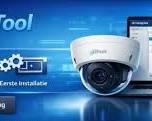
Dahua ConfigTool is the official network management software developed by Dahua Technology for initializing, configuring, and batch-managing IP cameras, NVRs, DVRs, and door stations across a local area network (LAN).
Whether you are configuring new devices or searching for network IP addresses, ConfigTool streamlines setup for installers and administrators.
1. Key Features of Dahua ConfigTool
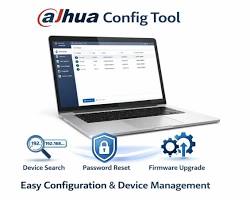
| Feature | Primary Function | Ideal Use Case |
| Device IP Search | Auto-discovers all Dahua devices connected to the same LAN | Finding uninitialized or unknown IP addresses |
| Batch Initialization | Set passwords and network profiles for multiple cameras simultaneously | New multi-camera installations |
| IP Address Batch Modify | Change IP addresses and subnet masks in bulk without logging into each device | Network subnet changes or router swaps |
| Firmware Upgrades | Flash official Dahua firmware files across multiple units at once | Maintenance and security updates |
| Password Reset | Generate XML export files or QR codes for password recovery | Unlocking locked Dahua NVRs or IP cameras |
2. How to Search and Initialize Dahua Devices
Step 1: Discover Devices on LAN
- Connect your PC to the same router or switch as your Dahua cameras/NVRs.
- Launch ConfigTool and navigate to the Modify IP tab.
- Click Search Settings at the top bar. Enter the network password if you are searching for already configured devices.
- The tool will scan the network and display all detected hardware along with their IP, MAC address, and status (Initialized or Uninitialized).
Step 2: Initialize New Cameras
- Select the uninitialized cameras from the list and click Initialize.
- Set a strong administrative password (minimum 8 characters with numbers and letters).
- Provide a recovery email address to facilitate future password resets.
- Click OK to apply the settings.
3. How to Change IP Addresses in Bulk
- Select the checkboxes next to the target IP cameras in the list.
- Click the Batch Modify IP button at the top menu.
- Select Static IP or DHCP.
- Set the starting IP address (e.g.,
192.168.1.110) and subnet mask (255.255.255.0). - Click OK. ConfigTool will sequentially assign IP addresses to all selected units.
Conclusion
Using Dahua ConfigTool eliminates the need to manually connect to every IP camera through a web browser during installation. It serves as an essential tool for keeping device firmware updated, managing network configurations, and restoring lost passwords.
Need Professional Assistance with Dahua Systems?
Network setup, camera initialization, and multi-channel NVR configurations can require specialized expertise. If you need help troubleshooting network issues or deploying security solutions, our team is ready to assist.
Contact Our Security Specialist Directly:
Phone / WhatsApp:
+966556088894




.%20Whether%20you%20are%20configuring%20new%20devices%20or%20searching%20for%20network%20IP%20addresses,%20ConfigTool%20streamlines%20setup%20for%20installers%20and%20administrators.%201.%20Key%20Features%20of%20Dahua%20ConfigTool%20%5B…%5D&media=https://dahua.nexcelsaudi.com/wp-content/uploads/2026/08/34.jpg)