Resetting a Dahua security camera to its original factory settings is the most effective solution for resolving lost admin passwords, network connectivity failures, IP conflicts, or firmware glitches.
Depending on your camera model and level of system access, you can restore your camera using the physical hard reset button, the Web GUI interface, or the Dahua ConfigTool.
1. Physical Reset Button Method (Hard Reset)
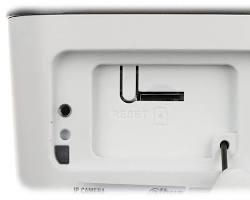
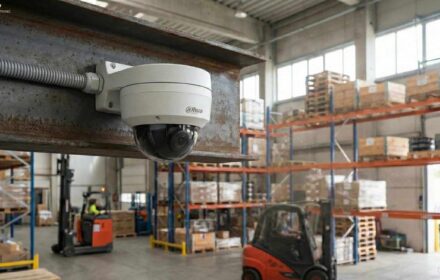
The physical reset button method works for virtually all Dahua IP cameras (Dome, Bullet, Eyeball, and PTZ models). This hardware method is ideal if you have forgotten your password or cannot access the camera over the local network.
Step-by-Step Instructions:
- Locate the Reset Panel: Remove the outer weather shield, lower casing, or MicroSD slot cover on the camera body to locate the internal Reset button.
- Keep Power Connected: Ensure the camera remains powered via a 12V DC adapter or a PoE (Power over Ethernet) switch throughout the process.
- Press & Hold: Use a paperclip, pin, or small screwdriver to press and hold the reset button for 10 to 15 seconds.
- Wait for System Reboot: Release the button. The camera indicator lights will flash, and the unit will restart automatically in default mode within 1 to 2 minutes.
2. Web Browser Method (Web GUI)
If your camera is active on the network and you know the current administrative credentials, you can execute a reset directly from your web browser.
- Open your internet browser, enter the camera’s IP address, and log in.
- Navigate to Setting > System > Default.
- Select your preferred reset type:
- Default: Restores operational settings (network, image quality, motion events) while preserving user accounts and IP configuration.
- Factory Default: Performs a complete wipe, removing all customized profiles, IP configurations, and passwords.
- Click Save and allow the camera to finish its reboot sequence.
3. Remote Reset via Dahua ConfigTool
If you need to reset or re-initialize multiple devices on your local network without opening physical camera housings:
- Download and launch the official Dahua ConfigTool on your PC.
- Go to Search Settings and enter your device password to discover connected cameras.
- Select your target camera from the active IP list.
- Navigate to the Device Initialization or System Settings tab and click Reset / Restore.
Post-Reset Setup & Default IP Address
Once the factory reset process is complete, your Dahua camera returns to an Uninitialized state:
- Default IP Address:
192.168.1.108 - Default Username:
admin - Initialization: You must create a new secure admin password upon logging in for the first time via the Web Interface, Dahua NVR, or DMSS mobile application.
Need Assistance Configuring Your Surveillance System?
System resets and network reconfigurations can sometimes present unexpected challenge. If you need expert assistance setting up your IP cameras, configuring NVR storage, or expanding your security system, our technical team is ready to help.
Contact Our Security Specialist Directly:
Phone / WhatsApp:
+966556088894